If there's a Home Assistant box humming away in your workshop, you've already solved the hardest part of setting up the local agent: finding a computer that's always on and sits on the same network as your printers.
The agent is the small program that talks to your printers over your own network and tells BolloPrint what it sees. On Home Assistant it installs as an app, from Home Assistant's own app store, and you link it to your workshop with one button.
- No codes or keys to copy: you link it from its page and confirm in BolloPrint.
- You don't touch the router: no open ports, no fixed IP.
- It looks after itself: the agent updates on its own, and the app updates whenever Home Assistant offers it.
Beta
The Home Assistant app is in beta. If something doesn't look right, tell us from Help in BolloPrint.
What you need
- Home Assistant OS. That's the installation type with an app store. If your Home Assistant runs in Docker ("Container"), it has no apps: install the agent with Docker instead, as explained in Agent on Docker.
- A 64-bit machine: a mini-PC or PC with an Intel or AMD processor, a Raspberry Pi 4 or 5, or a Home Assistant Green or Yellow. A Raspberry Pi 3 or any 32-bit system won't do.
- Home Assistant on the same network as your printers. If it runs in a virtual machine, give it a bridged network, not NAT.
- To be the owner of the workshop in BolloPrint: the agent can only be linked to a workshop you own.
1. Add BolloPrint to your Home Assistant
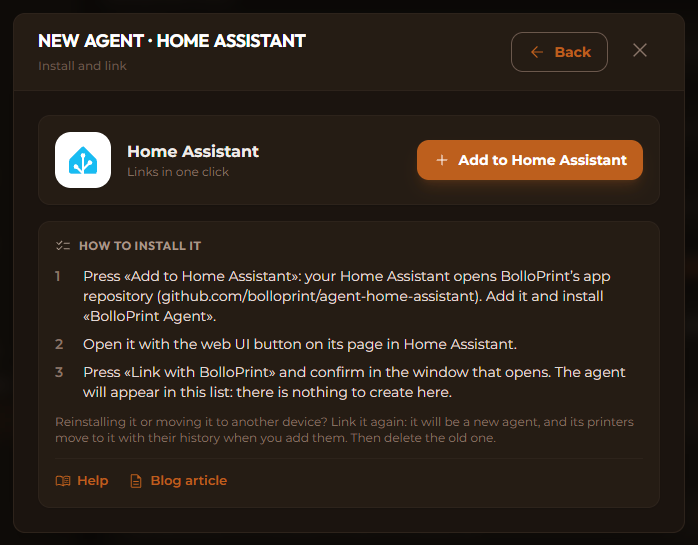
From a computer or phone on your workshop network, open BolloPrint and go to Settings → Printers → Local agent → New agent. Under With a package or an installer, choose Home Assistant and click Add to Home Assistant.
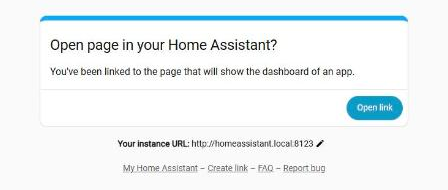
The button opens My Home Assistant, a Home Assistant page that forwards you
to your own Home Assistant. The first time, it asks for its address, something
like http://homeassistant.local:8123. Then click Open link.
Your Home Assistant asks whether you want to add BolloPrint's app repository
(github.com/bolloprint/agent-home-assistant). Click Add.
Prefer to do it by hand?
In Home Assistant go to Settings → Apps → App store, open the ⋮ menu
in the top right corner and choose Repositories. Click Add, paste
https://github.com/bolloprint/agent-home-assistant and confirm. BolloPrint
gets its own section in the store.
2. Install and start the app
BolloPrint Agent now appears in the app store, in its own BolloPrint section: it's the one with the BolloPrint dog. Open it and click Install. Home Assistant prepares the app itself, which takes a minute or two.
<!-- SCREENSHOT: 04-install.png — Home Assistant (English UI) app page of BolloPrint Agent, not installed yet, with the Install button. --> <!-- PENDING (uncomment when the screenshot exists):  -->Then click Start, and leave Start on boot switched on so the agent comes back by itself every time Home Assistant restarts.
<!-- SCREENSHOT: 05-started.png — Home Assistant (English UI) app page of BolloPrint Agent, running, with Start on boot on and the Open Web UI button. --> <!-- PENDING (uncomment when the screenshot exists):  -->3. Link it with your workshop
Click Open Web UI on the app page. The agent's own page opens in a new tab. It says the agent doesn't belong to any workshop yet, and shows a short code.
<!-- SCREENSHOT: 06-agent-page.png — the agent's page at http://<home-assistant>:8257 in English: «This agent doesn't belong to any workshop yet», the code and the Link with BolloPrint button. --> <!-- PENDING (uncomment when the screenshot exists):  -->Click Link with BolloPrint. You land in BolloPrint (sign in if it asks):
- Choose the workshop.
- Check that the code is the same one the agent's page shows.
- Check the name it suggests for the agent, change it if you like, and confirm.
You're sent back to the agent's page, which now says it's linked to your workshop. In BolloPrint, under Settings → Printers → Local agent, the agent appears Online within a minute, with the Home Assistant logo, and starts looking for your printers.

Do it from the workshop network
The agent's page only opens inside your local network. If you reach Home Assistant from outside (remote access or a VPN), Open Web UI won't load. Link it from a computer or phone that's on the workshop network.
There's nothing to create in BolloPrint: confirming the link is what adds the agent to the list.
If port 8257 is already taken
The agent's page uses port 8257 on the Home Assistant machine. If something
else is already using it, the app stops right after starting and its Log tab
says address already in use. Open the app's Configuration tab, put another
number under Network (8364, for example), click Save and accept when Home
Assistant offers to restart the app. Open Web UI follows the new port, and
the agent stays linked.
Keeping it up to date
Two things get updated here, and you'll hardly ever have to do anything:
- The agent, the part that talks to your printers, updates itself whenever BolloPrint releases a new version.
- The app, the part that runs the agent inside Home Assistant, updates when Home Assistant tells you there's a new version of BolloPrint Agent: click Update on its page, or switch on Auto update and forget about it.
Updating never unlinks the agent. Its identity lives in the app's data, which is also part of your Home Assistant backups.
Moving it or removing it
If you reinstall the app or move it to another Home Assistant, link it again: it becomes a new agent. Add your printers to it and they move across with their number and their whole history. Then delete the old agent, which will have been left without printers.
To remove it for good, delete the agent in BolloPrint first (⋮ → Delete on its row). Within seconds its page goes back to offering Link with BolloPrint. Then uninstall the app in Home Assistant, and remove the repository from Repositories if you no longer need it.
If you uninstall the app without deleting the agent first, it stays in BolloPrint as Offline: delete it from its ⋮ menu.
Something not working?
The app's Log tab in Home Assistant is the first place to look: it tells you what the agent is doing and, if it stops, why. The most common snags:
- The app doesn't show up in the store: in the app store, ⋮ → Check for updates and reload the page.
- It won't install: the machine is 32-bit. The app needs 64-bit.
- No printers found: Home Assistant and the printers aren't on the same network, or the virtual machine uses NAT. Add them by IP and they work just the same.
- Your workshop isn't listed when linking: only the workshop owner can link an agent.
Everything else, step by step, is in the guide Agent on Home Assistant.
Enjoy having your printers in view, with Home Assistant as the bridge.