Most workshops already have one: the PC in the corner that runs the slicer, prints the shipping labels and never really gets switched off. That PC is all the local agent needs.
The agent is the small program that talks to your printers over your own network and tells BolloPrint what it sees. On Windows it installs like any other program, runs quietly in the background and links to your workshop with one button.
- No codes or keys to copy: you link it from its page and confirm in BolloPrint.
- No Docker: it's an ordinary Windows installer.
- You don't touch the router: no open ports, no fixed IP.
- It updates itself: when a new version comes out, it installs it on its own.
Beta
The Windows agent is in beta. If something doesn't look right, tell us from Help in BolloPrint.
What you need
- A 64-bit Windows 10 or 11 PC with an Intel or AMD processor.
- That PC always on and on the same network as your printers. If it goes to sleep, BolloPrint stops seeing your printers until it wakes up.
- Permission to install programs on it: Windows will ask for an administrator's OK.
- To be the owner of the workshop in BolloPrint: only the owner can add an agent.
You don't need to create anything in BolloPrint first. The agent joins your workshop when you link it.
1. Download the installer from BolloPrint
In BolloPrint, go to Settings → Printers, open the Local agent tab and click New agent. Under With a package or an installer, pick Windows and click Download for Windows.
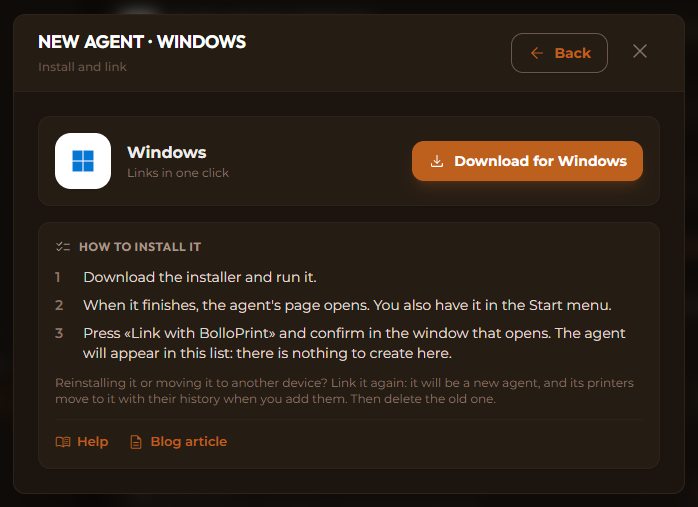
The card sums up what follows in three steps. There's nothing to create or fill in there: the agent appears in that list on its own once you link it.
Always download it from there: that's where the current version lives. If your browser says the file isn't commonly downloaded, choose Keep.
2. Get past the Windows warning
Our installer isn't digitally signed yet, so Windows treats it as an unknown program. When you open it you'll see a blue Windows protected your PC screen. That's expected:
- Click More info.
- Click Run anyway.
Windows then asks whether the app may make changes to your device. Click Yes: the agent needs it to install itself as a service and to be allowed to find your printers on the network.
No «Run anyway» button?
Then your PC has Smart App Control turned on. It blocks unsigned programs and doesn't allow exceptions. We don't recommend turning it off. Put the agent on another always-on device on the same network instead (a NAS, a Raspberry Pi, another PC): the options are in The local agent.
3. Click through the installer
It's a short one:
- Choose your language and keep the suggested folder.
- On The agent's page, leave the port at 8257. You only need to change it if another program on the PC already uses it; then try 8364.
- Click Install.
When it's done, keep Open the agent's page to link it ticked and click Finish.
<!-- SCREENSHOT: 04-finish.png — the installer (English) final screen with «Open the agent's page to link it» ticked and the Finish button. --> <!-- PENDING (uncomment when the screenshot exists):  -->By now the agent is already running as a Windows service: it starts with the PC, keeps working when nobody is signed in, and has a small BolloPrint icon next to the clock.
4. Link it to your workshop
The agent's page opens in your browser. It says the agent doesn't belong to any workshop yet and shows a short code. Make a note of it and click Link with BolloPrint.
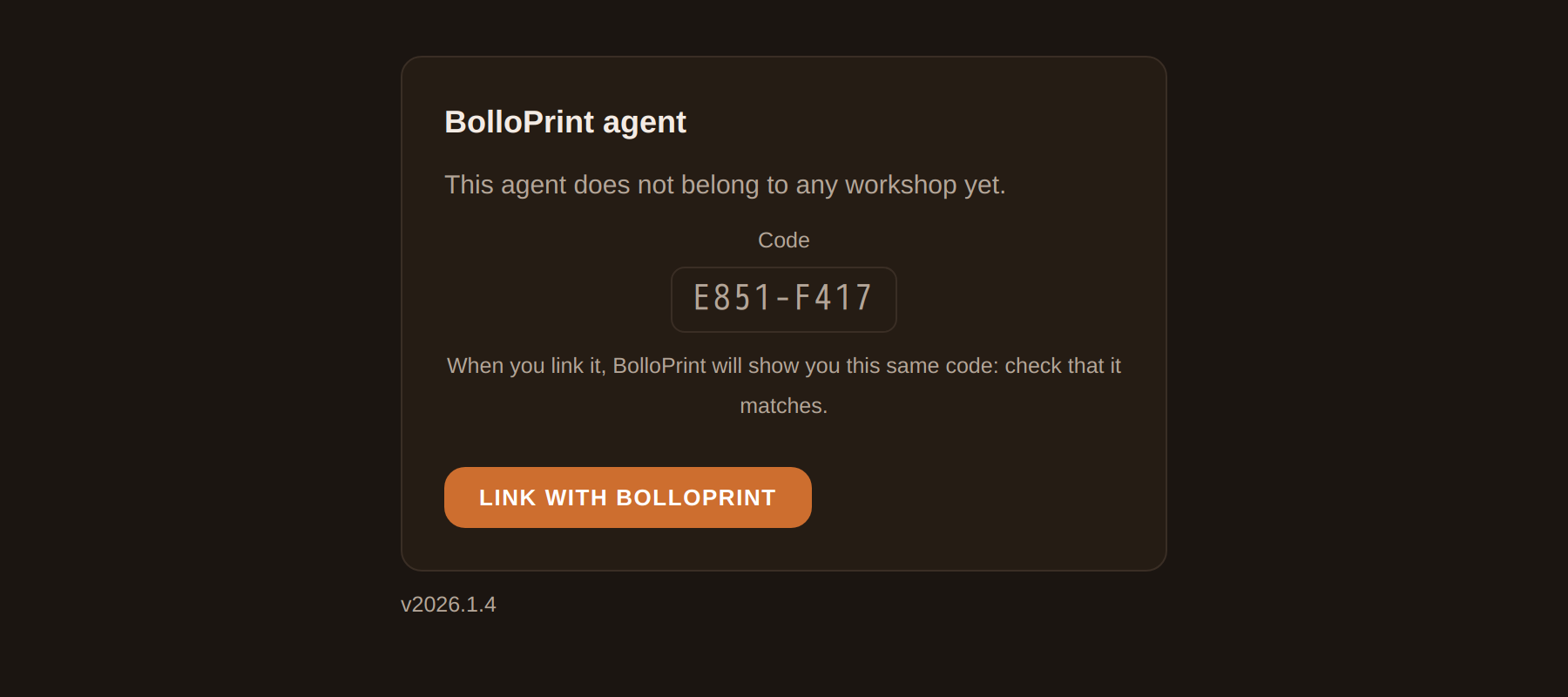
BolloPrint opens. Sign in with the owner's account if you aren't already. If you own more than one workshop, it asks which workshop to add the agent to.
<!-- SCREENSHOT: 06-choose-workshop.png — bolloprint.com (English) «Add an agent to your workshop» asking which workshop to add it to, with two workshops listed. Only if the account owns more than one; otherwise drop this image. --> <!-- PENDING (uncomment when the screenshot exists):  -->Then you see the confirmation: your PC's name and a code. Check it's the same code as on the agent's page, give the agent a name you'll recognise (where it is, like "Office", works better than "Agent 1") and click Add to workshop.
<!-- SCREENSHOT: 07-confirm.png — BolloPrint (English UI) «Add an agent to <workshop>»: Device (the PC's name), Code (matching the one in 05), the agent's name field and the «Add to workshop» button. --> <!-- PENDING (uncomment when the screenshot exists):  -->🔐 Only if you pressed the button yourself
Only confirm if you've just clicked Link with BolloPrint on your own PC. If someone sent you a link to "add an agent", close it.
5. Check it's working
You land on Settings → Printers → Local agent, with your new agent in the list, Online, with the Windows logo. The agent's page on your PC now says Linked to and your workshop's name.
<!-- SCREENSHOT: 08-online.png — BolloPrint (English UI, dark theme) Settings → Printers → Local agent with the Windows agent Online (Windows logo, version) and, below, Printers on the local network with printers it has found. --> <!-- PENDING (uncomment when the screenshot exists):  -->Within a few minutes, the printers it finds on your network start appearing under Printers on the local network (click Search now if you've just switched one on). Add the ones you want: the local network tutorial walks you through each brand.
The icon next to the clock
The BolloPrint icon is your shortcut to the agent. Click it to open the agent's page; right-click it to see whether the agent is running, to uninstall it, or to hide the icon.
<!-- SCREENSHOT: 09-tray.png — the Windows 11 taskbar (English) with the BolloPrint icon's right-click menu open: «Open the agent's page», «The agent is running», «Uninstall…», «Hide this icon». --> <!-- PENDING (uncomment when the screenshot exists):  -->Hiding the icon doesn't stop anything: the agent keeps working, and the icon comes back the next time you sign in. You'll also find BolloPrint agent in the Start menu.
Keeping it up to date
You don't have to do anything. When a new version comes out, the agent downloads it, checks that it's really ours and restarts with it. Your printers, their history and the link to your workshop stay as they are.
If you ever want to update it yourself, download the installer again from the same place and run it over the one you have. It remembers your folder and your port, so it's Next all the way, and it stays the same agent in the same workshop. No need to uninstall first or to link it again.
Moving it or removing it
Reinstalling it on the same PC changes nothing: the agent remembers who it is and comes back linked.
Moving it to another PC means a new agent: install it there and link it, then add your printers to it. They move across with their whole history. Then delete the old agent in BolloPrint (⋮ → Delete on its row) and uninstall it from the old PC.
To remove it from your workshop, delete it in BolloPrint (⋮ → Delete on its row). The agent notices within seconds and its page goes back to offering Link with BolloPrint; if you link it again, it comes in as a new agent.
To uninstall it, right-click the BolloPrint icon → Uninstall…, or go to Windows Settings → Apps → Installed apps, find BolloPrint Agent and uninstall it from there. That removes the program, the service, the icon and its firewall permission. If you're not going to use it any more, delete it in BolloPrint too.
Something not working?
- The agent's page won't open: right-click the BolloPrint icon. If it says the agent isn't responding, restart the PC. If that doesn't fix it, another program may be using the port: run the installer again and pick 8364.
- "The link has expired or was already used": the confirmation only lasts a couple of minutes. Click Link with BolloPrint again.
- Your workshop isn't listed when linking: only the workshop's owner can link an agent.
- No printers found: the PC and the printers aren't on the same network (a VPN, a guest network or a separate Wi-Fi gets in the way). Add them by IP and they work just the same.
- It goes offline every night: the PC is going to sleep. In Windows Settings → System → Power, set it never to sleep while plugged in.
Everything else, step by step, is in the guide Agent on Windows.
Enjoy having your printers in view, with the workshop PC as the bridge.